Documentation

WordPress Forms Plugin Documentation

Build signup forms in WordPress that send new subscribers straight to your MyEmailProgram lists.

1

Request the plugin file

The Forms plugin is included at no extra cost with every MyEmailProgram plan. It isn’t available for public download, so contact us and we’ll send you the plugin file.

2

Install the plugin

In your WordPress dashboard, go to Plugins → Add New → Upload Plugin, choose the file we sent you, then install and activate it.

Uploading the plugin in WordPress
3

Add your API key

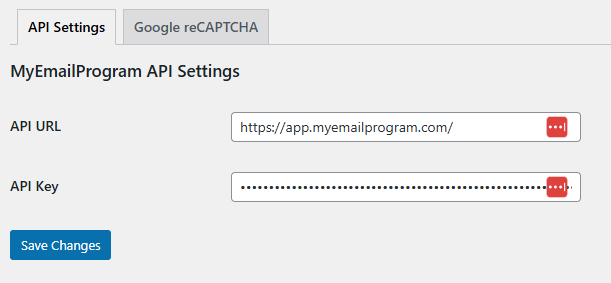
  1. In WordPress, go to Settings → MyEmailProgram Forms.
  2. Open the API Settings tab.
  3. Enter the App URL: https://app.myemailprogram.com/
  4. Paste your API key into the API Token field and save.

Don’t have a key yet? Follow How to Create an API Key.

MyEmailProgram Forms plugin API settings
4

Add Google reCAPTCHA

reCAPTCHA keeps bots from filling your lists with fake signups.

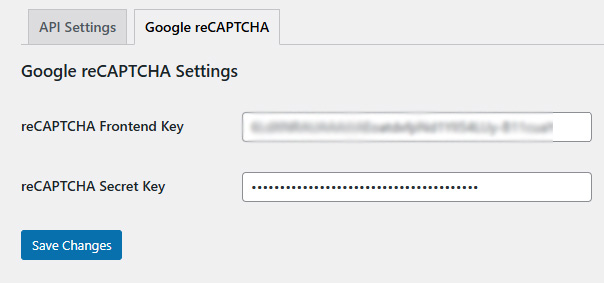
  1. Sign up for Google reCAPTCHA (free).
  2. Create a reCAPTCHA v2 key for your website.
  3. Enter the Frontend Key and Secret Key in the plugin’s reCAPTCHA settings and save.
reCAPTCHA settings in the MyEmailProgram Forms plugin
5

Create a form

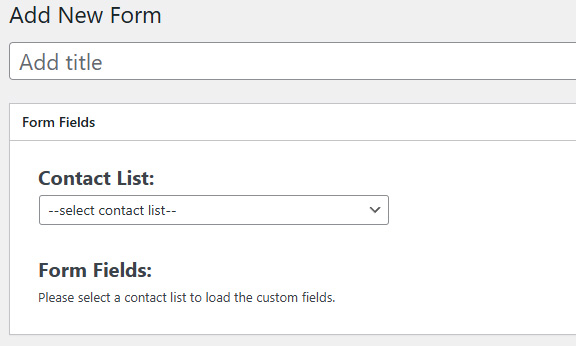
  1. In your WordPress dashboard, open the new MEP Forms menu and click Add New.
  2. Give your form a title.
  3. Choose the contact list new subscribers should be added to.
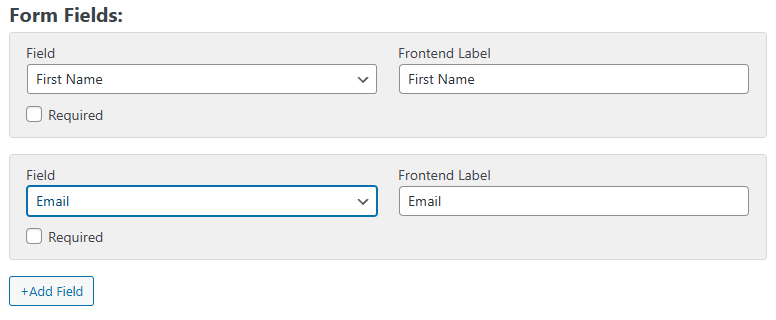
  4. Click + Add Field to add fields. Set each field’s label and mark it required if needed.

Every form needs an Email field to work.

Adding a new form in MEP Forms
Adding fields to a MEP form
6

Add the form to your site

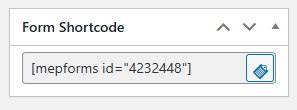
Copy your form’s shortcode from the form edit screen or the All Forms list, then paste it into any page or post where you want the form to appear.

Form shortcode in MEP Forms

Need a hand with setup?

Customers can reach Jacob directly. Not a customer yet? Send us a message and we’ll help you get connected.